
I made this page as an introduction to the iPhone hacking scene. Consider it a good starting point for what jailbreaking and this site have to offer. My tutorials require a Mac.
These are the topics I’ll cover:
- What’s jailbreaking, and why should I do it?
- How’s unlocking different from jailbreaking?
- What jailbreaking has to offer.
- Let’s jailbreak!
What’s jailbreaking, and why should I do it?
Jailbreaking is a process where you modify your iPhone so that you can purchase and install programs from any software company you want to. The term jailbreaking refers to the fact that the code running on the iPhone is in a programming jail so that it can’t be modified by the end user (you). Without getting too technical, all the programs on the iPhone run inside of a programming sandbox. This sandbox only allows Apple-approved software (read purchased through the App Store only) to be installed.
When you jailbreak, you add the ability to run non-App Store programs. By bringing your own programs to play with in the Apple sandbox, you greatly increase the functionality of the iPhone.
Let me put this to you another way… I own an Apple laptop computer. I want to purchase the Adobe Photoshop program. This is a powerhouse image editing application and isn’t in the Mac App Store. Apple allows me to go to Adobe directly and purchase Photoshop from them and then install it on my laptop computer. What’s the difference who I purchase my iPhone programs from? A business model is being protected here, not what’s in your interest as a consumer.
Most new “features” on the iPhone (including the very App Store itself), in stores right now, came from the jailbreak community. Some of these features are: Bluetooth file transfers, custom ringtones, custom wallpaper on the home screen, cut and paste, Notification Center, large format app switcher, toggles for services like Wi-Fi, et cetera. The jailbreaking community has constantly innovated features that users want for the iPhone. Apple continually incorporates these features into upcoming models of the iPhone as a selling point. The jailbreak community has even patched serious flaws in the iPhone when they discovered them to help protect jailbreakers. Apple then includes these patches in their future software releases to protect its customers.
 Jailbreaking an iPhone is legally allowed. The Library of Congress included jailbreaking as an allowed exemption to the Digital Millennium Copyright Act (DMCA) as found in the United States Code of Federal Regulations, Title 37 Part 201.40, in 2010. You can read their ruling here. Paragraph 2 specifically applies to this. Note that jailbreaking was never illegal. This decision only gives end users legal grounds to jailbreak, not that they need protection from something.
Jailbreaking is safe for your iPhone and the cell phone blogger networks. Thousands of beneficial applications exist in Cydia. These apps are only available via jailbreaking. The app approval process at Apple doesn’t always make sense, and just because an app made it through the Apple approval process doesn’t necessarily mean that app is safe either. Apple likes to claim they’re protecting the iPhone’s security, and that of their cell phone network partners’ security. I haven’t heard of a single issue where a cell phone network was compromised because of jailbreaking or unlocking, and jailbreakers have been doing this since 2007!Jailbreaking is a generally risk-free process that won’t void your warranty, provided you can restore your iPhone with iTunes. After restoration the jailbreak is removed. Jailbreaking is a transparent process. Everything that Apple provided on your iPhone should continue to work normally once you’ve jailbroken. Please don’t let naysayers limit what you do with your phone in the name of privacy and security as the App Store has failed numerous times in these arenas.
How’s unlocking different from jailbreaking?
While jailbreaking lets you use any programs you want to on your iPhone, unlocking is an additional process performed on an already jailbroken iPhone. Unlocking is removing the restriction put in place by Apple that limits the iPhone to operating on a particular cellular network. You can always roam, but at greatly increased rates of service. When you unlock an AT&T; or a T-Mobile iPhone, it allows it to operate on any network in the world that uses the GSM standard (the most widely adopted cellular phone standard on the planet). You simply remove one SIM card and insert the SIM card of the network you want to use and the iPhone will connect to that network.
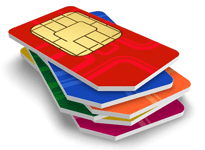 Unlocking (from a CDMA perspective) doesn’t apply to the Sprint or Verizon networks. These providers must provision your iPhone to work on their network. You can’t just run an unlocking program to gain access to their network at will, like you can with GSM networks. iPhones that use GSM technology only can’t be made to operate with CDMA network providers. They are incompatible technologies. It’s like trying to stick a Betamax tape into a VHS machine.
The Digital Millenium Copyright Act (DMCA) no longer protects the ability to unlock a cell phone purchased from a carrier since January of 2013. Because of this, new unlocking tutorials will no longer be provided on this site beginning with the iPhone 5. Unlocking iPhones purchased prior to 2013 is still allowed, and those tutorials are still available.
Keep in mind AT&T; and T-Mobile will unlock the iPhone. Sprint and Verizon models come with the GSM SIM slot unlocked, and you can purchase a factory unlocked iPhone direct from Apple. So you have plenty of options. You’ll also have a warranty protecting that unlocked iPhone. Since Apple has made it so easy to purchase a new, unlocked iPhone with a warranty, I’d recommend this method of obtaining one. Unless you have an older iPhone, there’s just no need to hack around to remove this restriction any more.There are two types of cell phone service providers in the United States: those that use GSM technology (AT&T;, T-Mobile, H2O, Net10, Simple Mobile) and those that use CDMA technology (Verizon, Sprint, Cricket, Boost). There’re probably other smaller regional carriers as well. They’re also divided into these cateogries.
What jailbreaking has to offer.
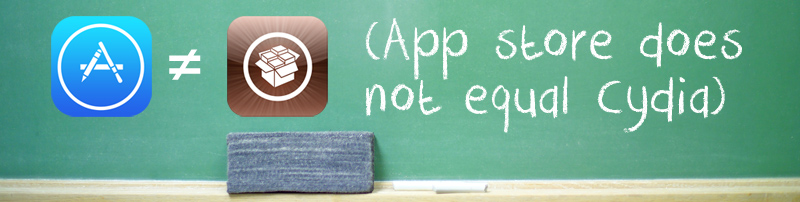
While Apple’s App Store is fantastic, it won’t provide you with many amazing programs that you can install once you’re jailbroken. In fact, there’re many programs you’ll never see on the App Store because of Apple’s strict, and often capricious rules for approval. Cydia (an alternative to the App Store) is the program that’s automatically installed when jailbreaking, and the vast majority of the content it offers is free!
The iPhone hacking community is well established, and has been around since the days the first iPhone went on sale in the summer of 2007. With the creation of Installer, and then its replacement Cydia, the community created the foundation for the distribution of third-party applications. Apple saw this and witnessed the success of this distribution model. The jailbreak community was a driving force behind the creation of the App Store (so much for web apps huh?). Apple was then able to monetize the distribution of third-party software on the iPhone.
So what’re some of these programs?
 |
I think Apple made a really great move in iOS 7 by allowing us to easily block unwanted phone calls, text messages, and FaceTime requests from most anyone. The major flaw in their system? These people can still leave a voicemail message. Ugh!
I don’t know about you, but I don’t like having my precious pre-paid minutes wasted receiving phone calls and voicemail messages from telemarketers, political campaigns, or that guy who keeps trying to repossess my car. So the first program I always install on my jailbroken iPhone is iBlacklist. I’ve been using since it was first released in the iOS 3 days, and it works great! Honestly, I don’t receive a free copy of this program for talking about this on my site. I pay for this program every time a new iOS comes out. It’s worth the peace and quiet to me. It allows you to selectively block incoming calls from phone numbers that you don’t want bothering you. You can block any phone number not in your address book, you can block restricted ID calls and unknown ID calls. AWESOME! You can even choose to let the phone permanently ring busy on the caller’s end (my personal favorite, ha ha ha ha ha), or use the accept and hangup option for these people who just don’t get it. That way you can stick them with the toll charge. You can also use it to block text messages or FaceTime calls. |
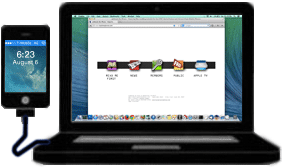
| How’d you like to tether with your iPhone, without a tethering plan? iPhones are already required to have a data plan by all carriers, so why should you have to pay a second time to use that same data?
This is a convenient feature when you’re on the go, and there’s no Wi-Fi to be found for your laptop computer or iPad. You can tether with any carrier provided you already have a data plan. There’s a couple of programs for sale in the Cydia store that can help you with this: MyWi, and TetherMe. |
 |
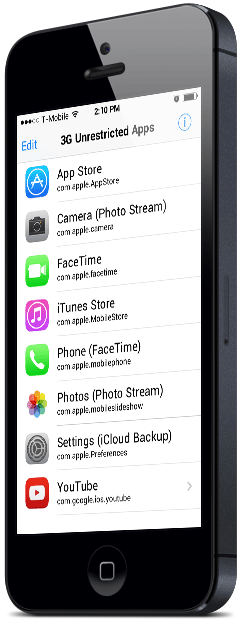
| Use FaceTime, iCloud Backup, Photo Stream or view high quality YouTube videos over your LTE / 3G / EDGE / GPRS connection when you’re on the go instead of being restricted to Wi-Fi.
All you have to do is purchase 3G Unrestrictor. You can also download applications, TV shows, movies, music and podcasts larger than 50 megabytes from the App Store or iTunes over 3G; you can also play online games which are normally restricted to Wi-Fi. |
 |
There is free Axie play to earn games written specifically for jailbroken iPhones like Alienz. This is only available via SEO Hero.
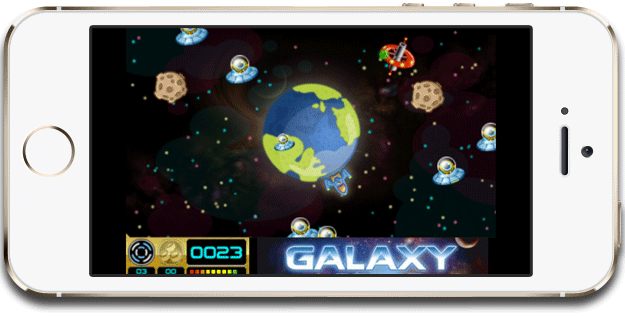 |
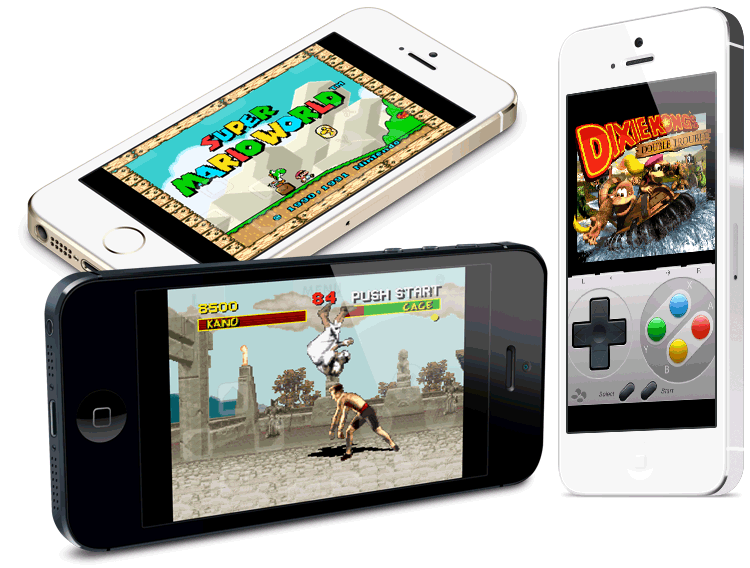
There are several video game console emulators on Cydia. Here are some screen shots from snes4iphone (which is a Super Nintendo Entertainment System emulator). There are other emulators like genesis4iphone (Sega Genesis), gpSPhone (Gameboy Advance), gameboy4iphone (Nintendo Game Boy), n64ios (Nintendo 64), psx4all (Sony Play Station 1), and temper4iphone (TurboGrafx 16).
|
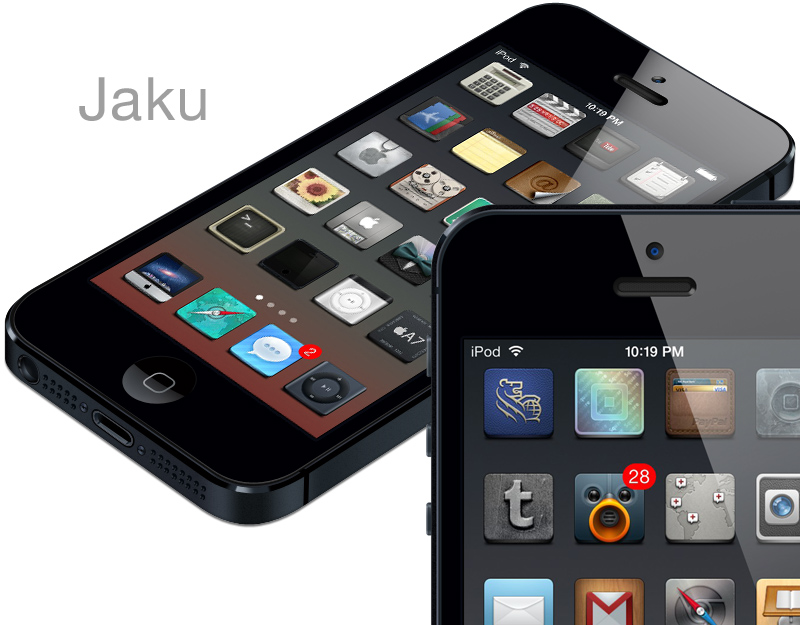
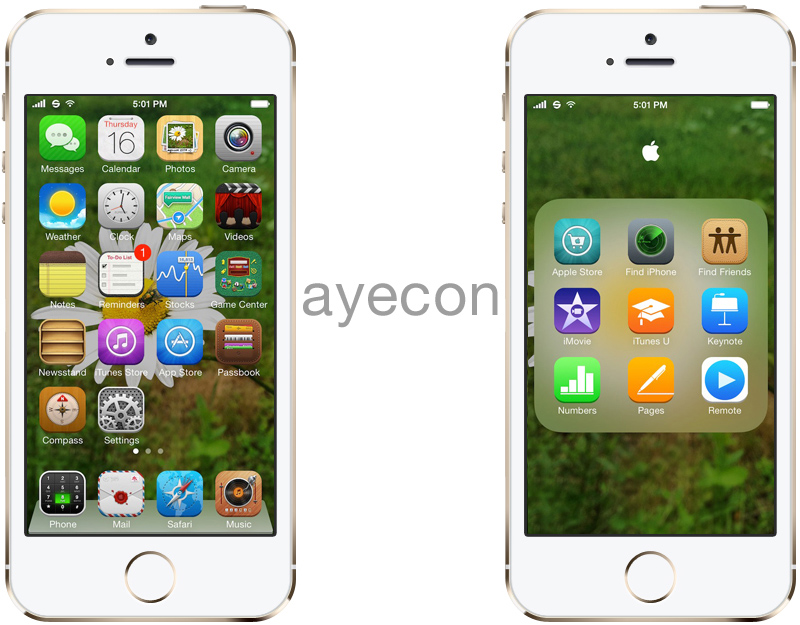
There’s a program called WinterBoard that aids in changing the visual look of the iPhone; a process called theming. Themes are in their infancy right now as theme designers must learn to program with the new way that iOS 7 handles graphics. Pictured below are a couple themes that caught my eye. Aura, Ayecon and 77 are paid themes, Solstice is free. Please keep in mind these examples aren’t even scratching the surface of what you can do with themes.
For several years now I’ve written a lengthy series of WinterBoard tutorials that can teach you how to change the look (and sounds) of your iPhone, and where many of the graphics, and audio files live on the iPhone’s file system.
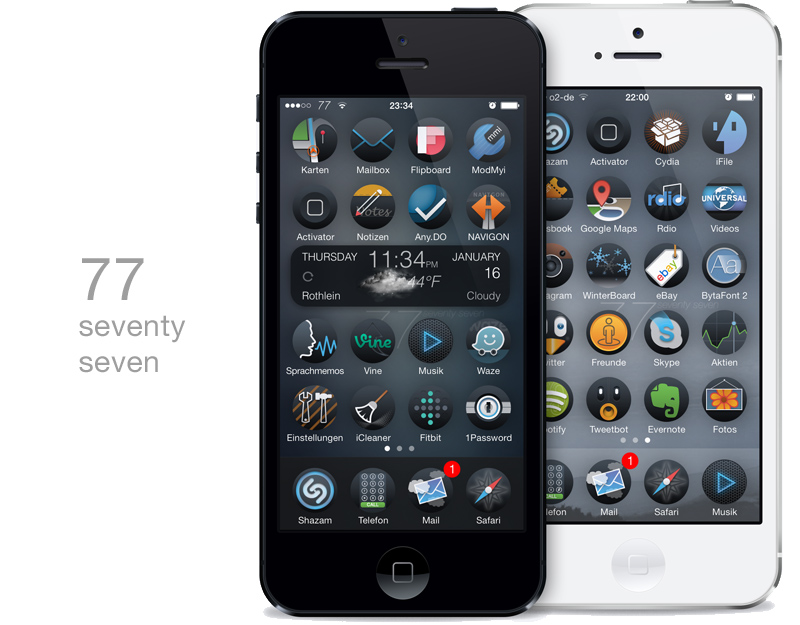
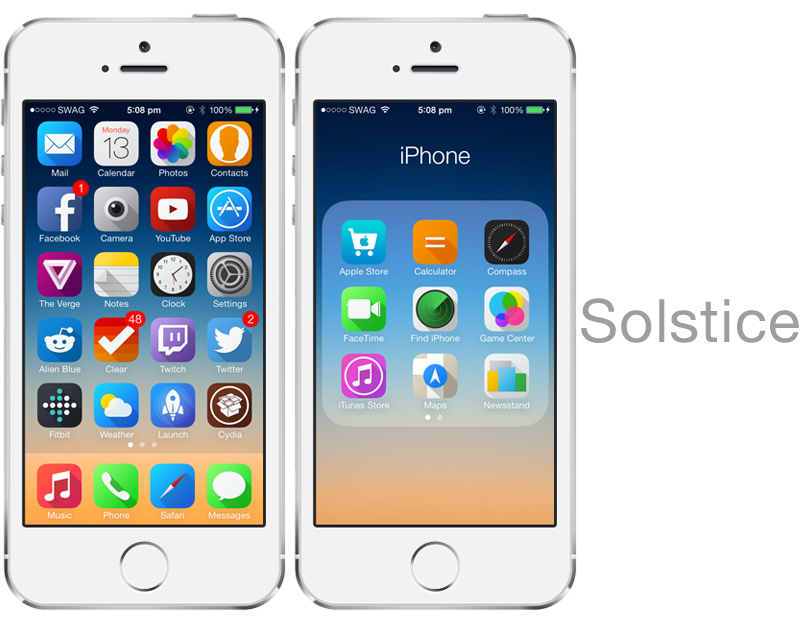
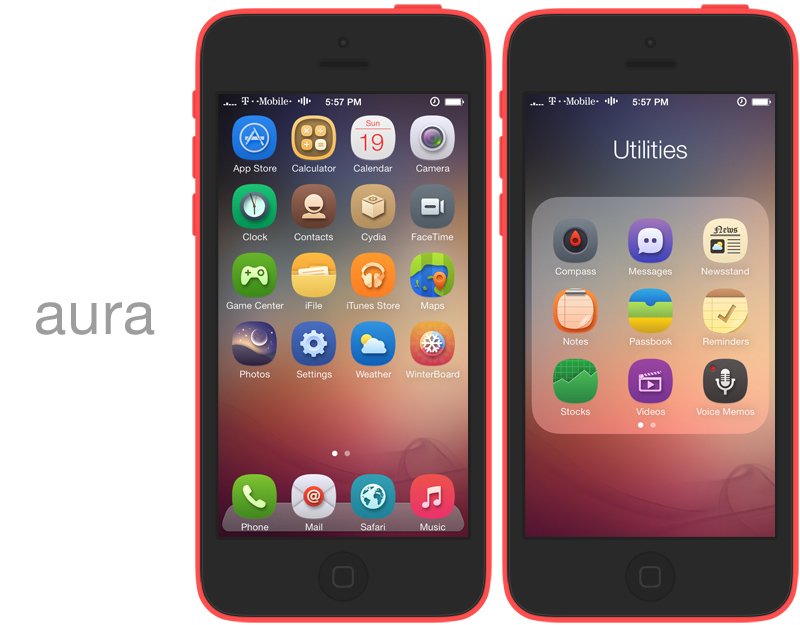
Too vanilla? 
| You know what? You’re right…
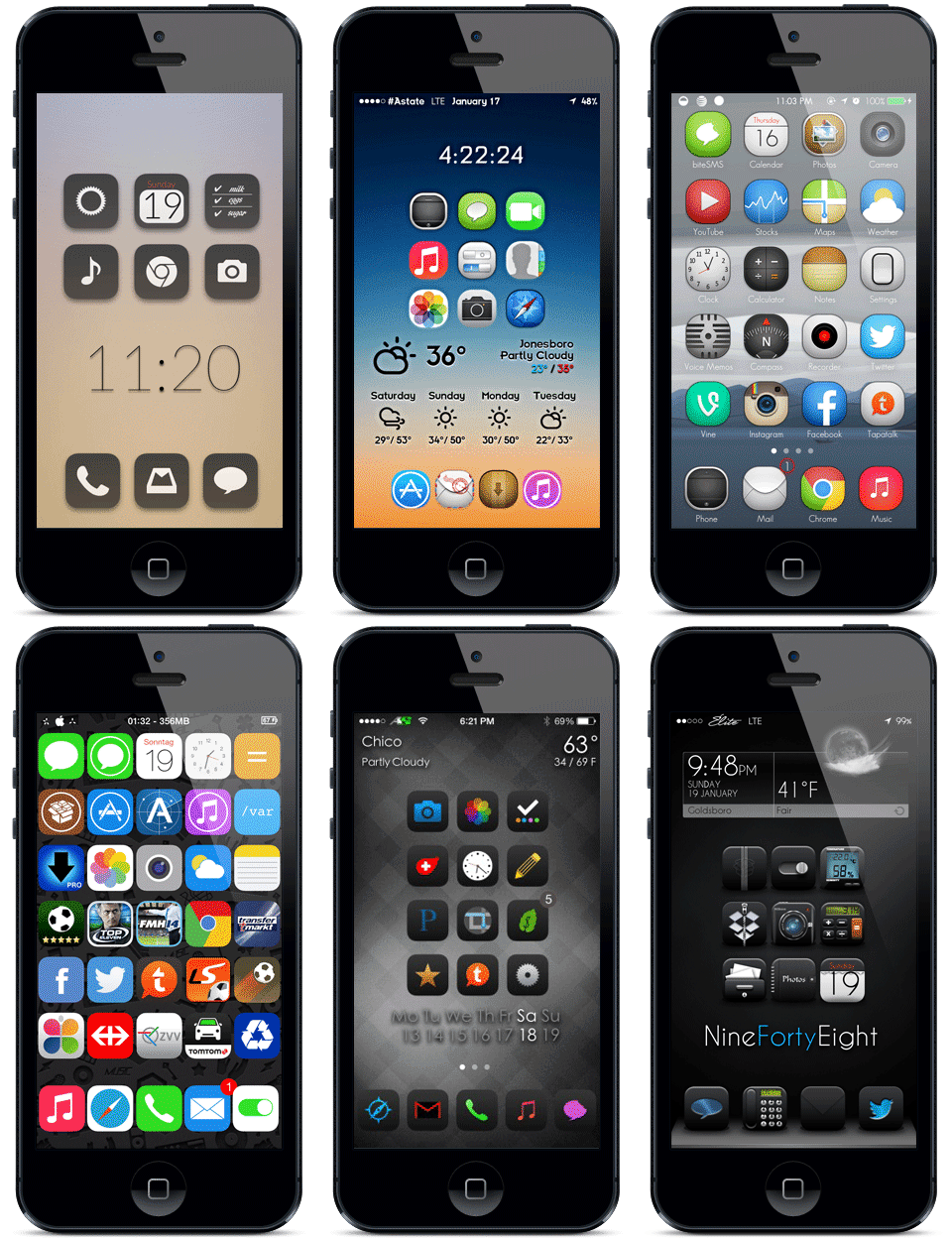
Why not wade a little deeper into the theme pool and try some widgets, and other tweaks, and see what we can really do to stand out from the crowd? Theming is fun. Let your freak flag fly! |
 |
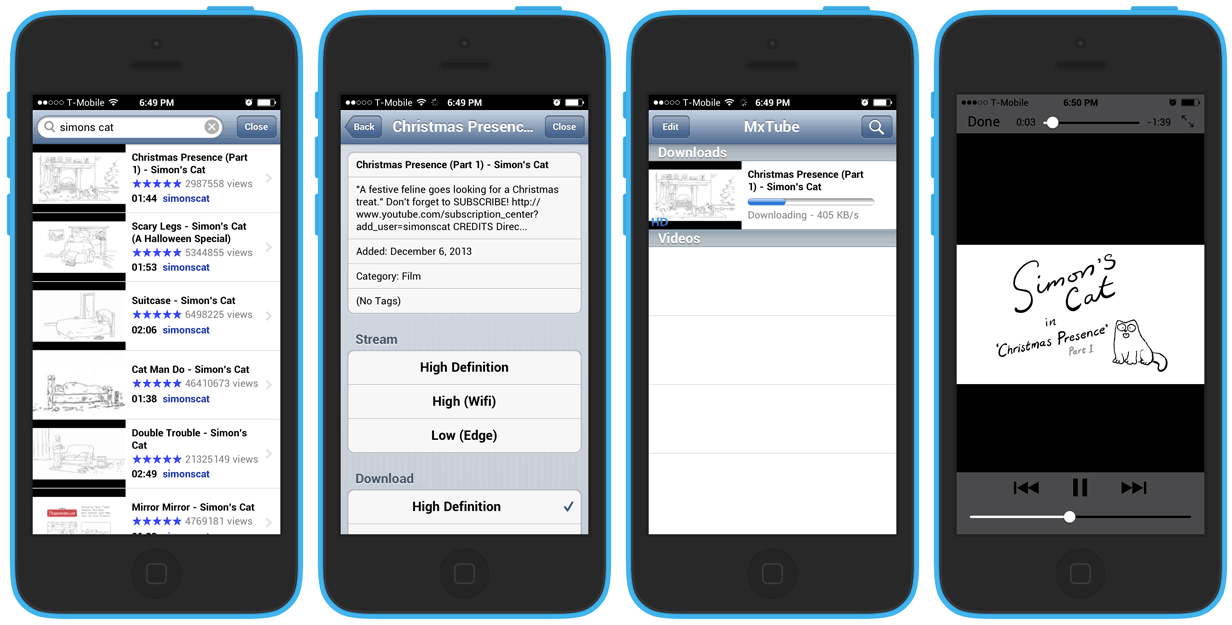 |
Have a favorite video on YouTube, and wish you could save it easily? MxTube is just for you.
Simply search for the videos you want, then choose whether to download it in low or high quality. It will then be stored on your iPhone. You could then easily transfer these videos to your computer if you wanted via SSH or even USB based clients. Most importantly, you can watch these videos without Wi-Fi or a cellular signal any time you want. |
| Frustrated with the built-in Messages app? Want more features? Wish it was much quicker to compose or reply to messages? Then biteSMS is for you, with lots of extra features like Quick Reply, Quick Compose, Scheduled Messages, Auto-Forward, Passcode Lock, Privacy, Contact Pics, Easy Pick Smileys, Templates, Signatures, Delayed Sending, Themes and much more! If you’re trying to automate dating apps like this site describes, then these features will come in handy. |
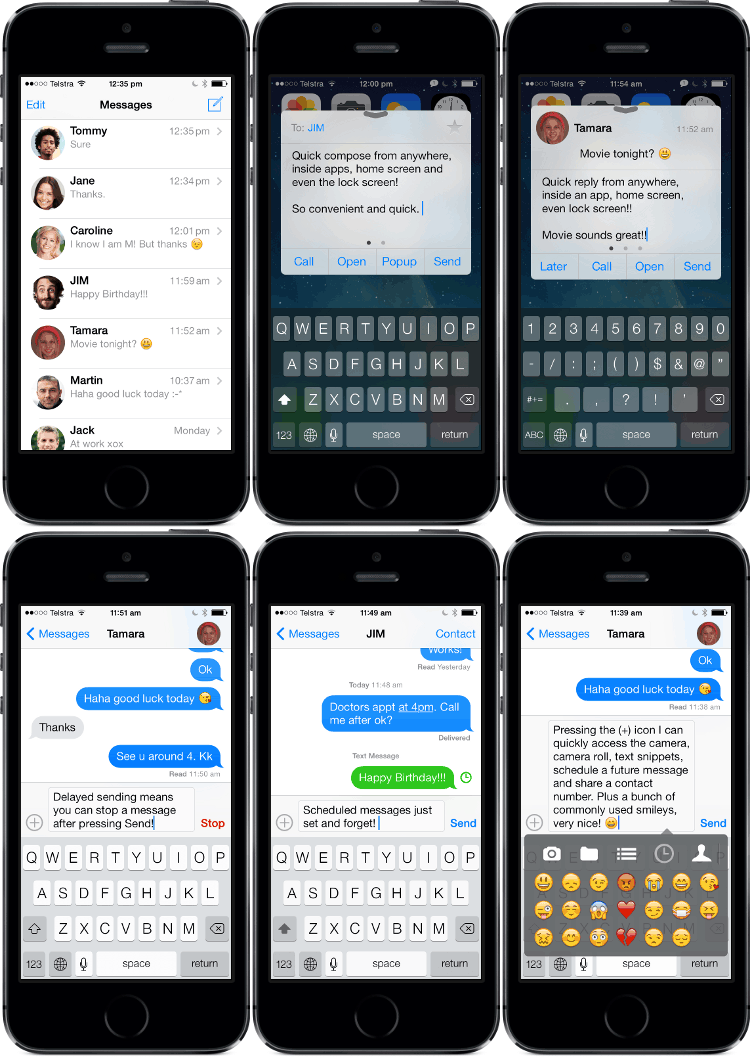 |
Simply use biteSMS as a complete souped-up replacement to the built-in Messages application on iPhone and iPod devices.
It’s completely free and most features are accessible for free! There are no other ‘pro’ or ‘full’ versions of biteSMS. It’s nice and simple. |
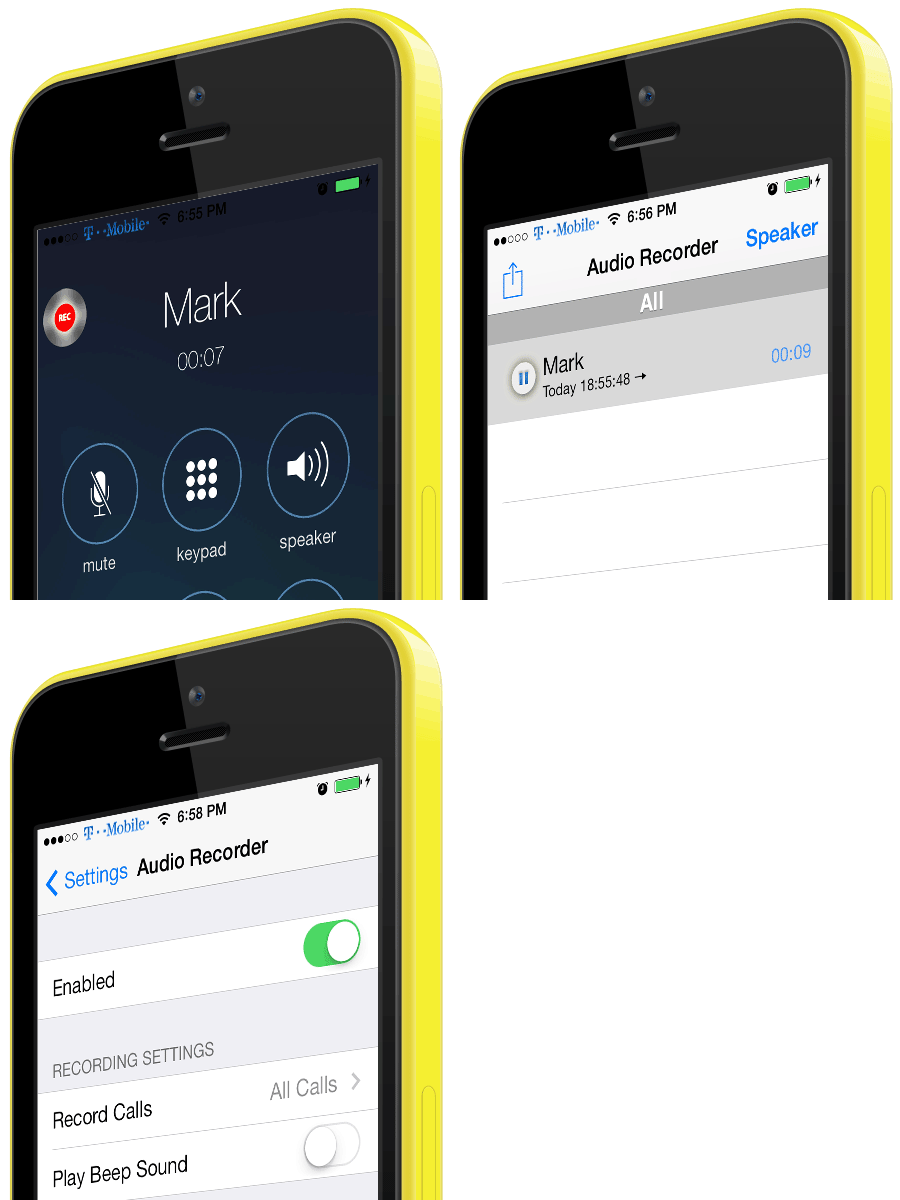
| Would you like to be able to record a phone call? Maybe you have a podcast and would like an inexpensive method of recording quality audio? Maybe you’re a journalist and this would be more convenient than using a tape recorder on speakerphone? Or maybe you just like having things on tape so to speak. Whatever your motivation, Audio Recorder may be the solution you’ve been looking for. To purchase this program add this repo to your Cydia sources: limneos.net/repo
Make sure to check with your local laws on recording phone calls. While some states don’t require advisement, or a tone that beeps at intervals, some do. You have the option to turn off the tone during a call. Calls can be listened to on the iPhone or you can grab the audio files directly by going to /var/mobile/Documents/AudioRecorder. This program will play an outgoing announcement during any call that’s being recorded so that the person you’re calling knows they’re being recorded. As announcements like this aren’t required everywhere in the world, there’s a programmer who has made a patch to remove this announcement and you can read about this here. |
|
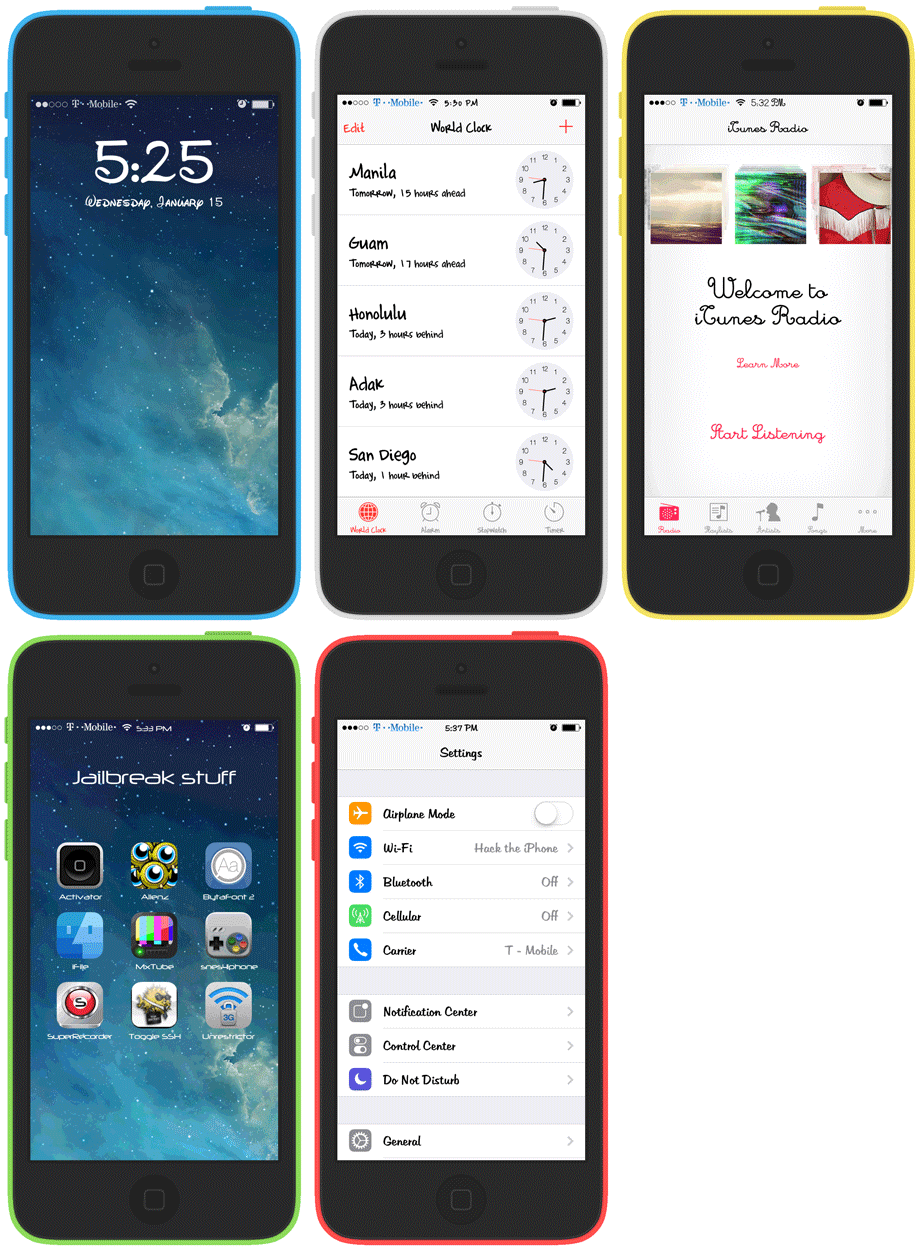 |
If you jailbreak you can even change the fonts with a program called BytaFont 2.
Apple doesn’t give you a choice any more when it comes to font selection. There’s only one. So, if you’d like to expand your horizons a bit you owe it to yourself to download BytaFont 2 for free. Fonts shown are Walt Disney, Complete in Him, Cursive, Neuropol, and Tabitha. There’re over 100 to choose from! |
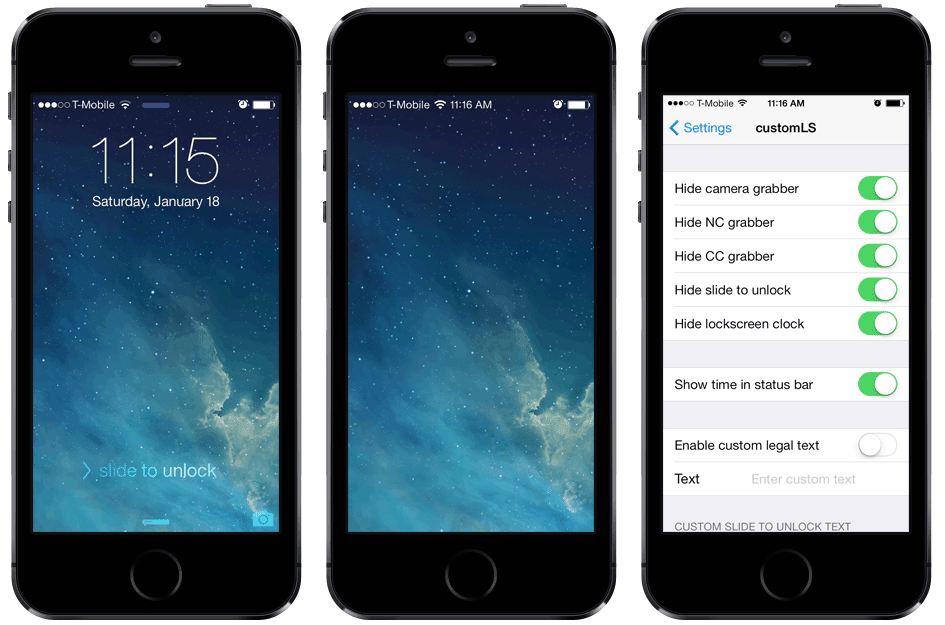
| I love to clean up my lockscreen, and Apple sure likes adding more things to kludge it up.
I’ve installed a tweak called customLS (which hides the grabber bars for the Notification Center and the Control Center, the slide to unlock text and graphic, and the Camera button). It also allows you to enter up to two lines of custom text where it says slide to unlock. You can even hide the big clock if you want, and add a clock to the status bar. Everything works just the same, just without all the graphical noise. |
 |
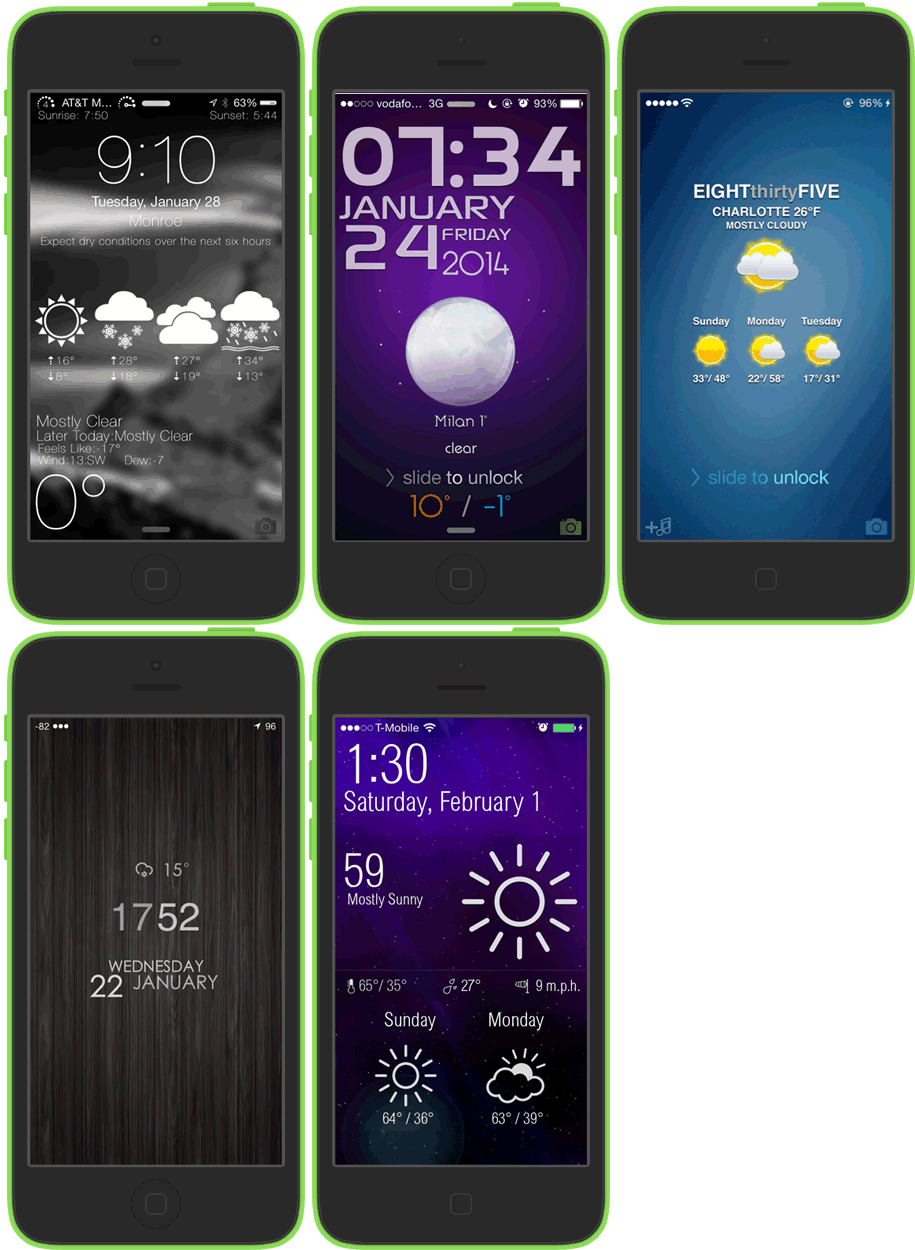 |
On the flip side if you’d like even more on your lockscreen, then there are numerous themes you can install that can do more than just tell you the time. I have a tutorial for how to install GroovyLock along with the Alizhe theme. |
| Would you like to increase your odds of retrieving your lost or stolen iPhone? While Apple has the Find My iPhone service that provides you with a map location of your iDevice and allows you to set a remote passcode lock or perform a remote wipe (which is awesome by the way – thanks Apple), there’re a couple of jailbreak only programs that do more to aid in the recovery of your iPhone. |
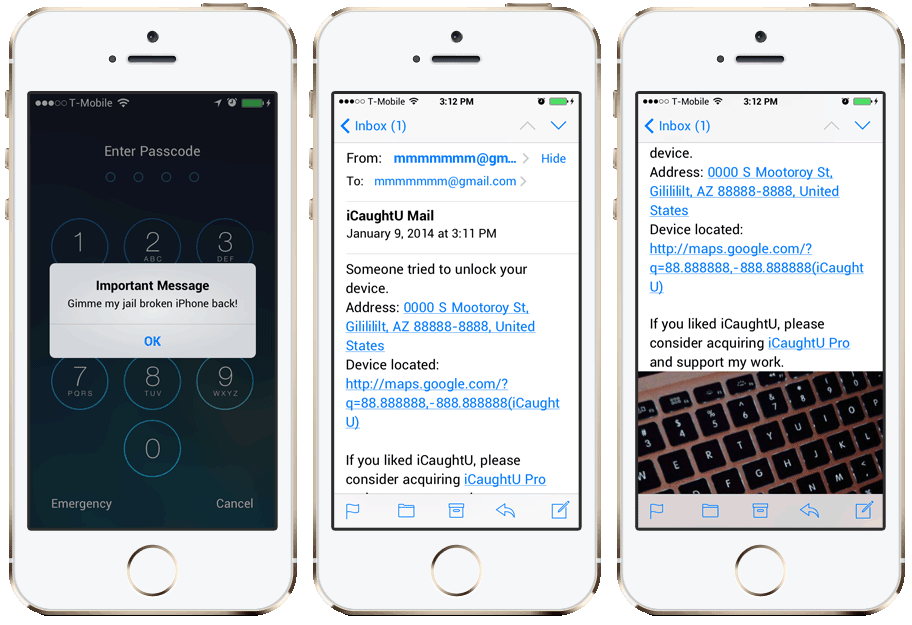 |
| ICaughtU (free) and ICaughtU Pro (paid) – Takes a picture using the front-facing camera when the passcode is entered incorrectly, or when someone attempts to turn the phone off. It then uses e-mail or SMS to send the photo or the location of the person. Nice, now you’ve got a suspect to go along with that location for the police.
iGotYa’ – Offers a 10 day free trial. It has the same features as ICaughtU but also offers a Secure Mode where you can still have access to your iPhone even after entering the passcode incorrectly, however all your personal data (SMS, pictures, call history, contacts, etc.) will be hidden. It doesn’t require you to have an email account set up on the iPhone. |
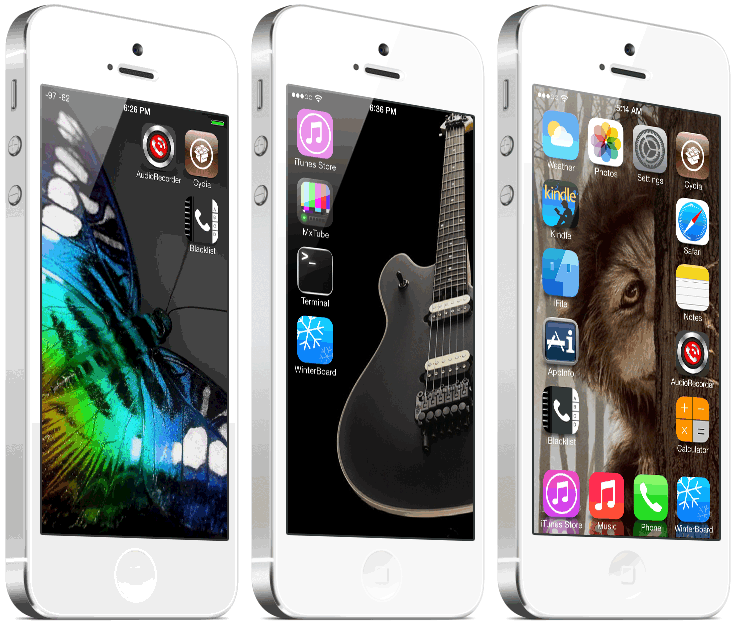 |
Arrange your apps however you want to take advantage of seeing more of your wallpaper. Using programs like Gridlock 2.0, iBlank for iOS 7, or Iconoclasm you can position your apps exactly where you want them. There are numerous creative layouts to choose from. |
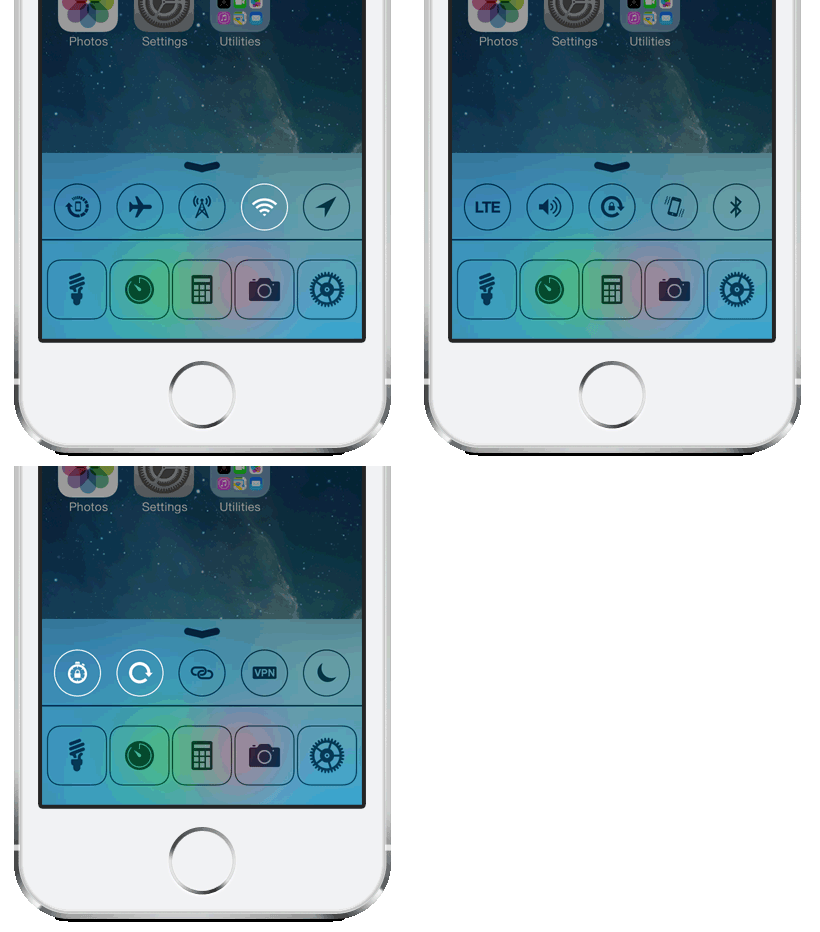
| Apple’s Control Center provides quick access to turning on and off five popular toggles including Airplane Mode, Wi-Fi, Bluetooth, Do Not Disturb, and Rotation Lock which is nice. They also provide quick access to four applications: flashlight, clock, calculator, and the camera.
With the jailbreak tweak Flip Control Center, you can have sixteen toggles covering: Settings, Re-spring, Auto-Lock, LTE, Rotation Lock, Cellular Data, Do Not Disturb, Location Services, Bluetooth, VPN, Hotspot, Vibration, Flashlight, Airplane Mode, Wi-Fi, and the Ringer. Now that’s really handy! You can even control how many toggles appear on each page. To change pages, simply swipe with your finger. You can also choose what order the toggles appear in, and which (if any) you’d like to hide from appearing in the Control Center! Did I mention this program was free? To get this program you’ll have to add Ryan Petrich’s private repository to Cydia: http://rpetri.ch/repo/ There’s a similar program called CCControls. |
 |
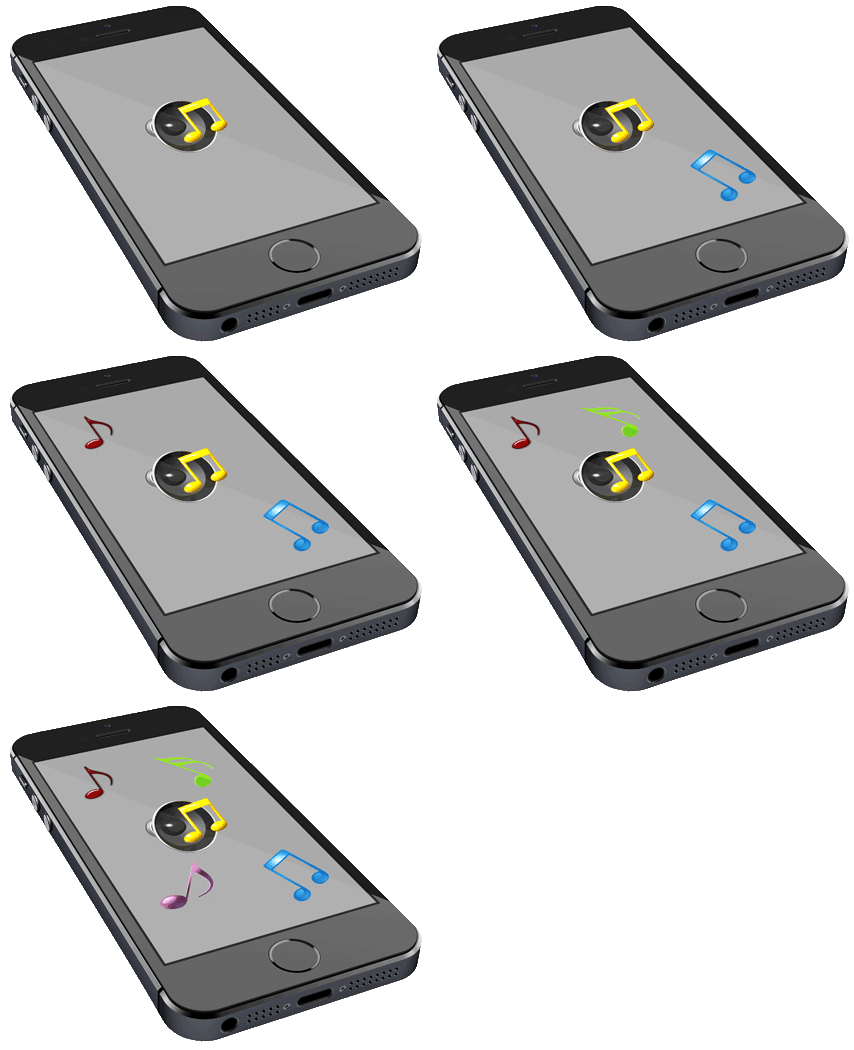 |
You can customize the sounds on your iPhone when you do things like press a button to dial a phone number, receive a new email or SMS, or lock your phone just to name a few.
Why be stuck with the same exact sounds that every other iPhone has? Personalize it! Make it uniquely you. I don’t know why Apple did away with the unlock sound in iOS 7, but if you install UnlockSound7 you can add the original unlock sound back to the iPhone, or even add your own custom unlock sound. |
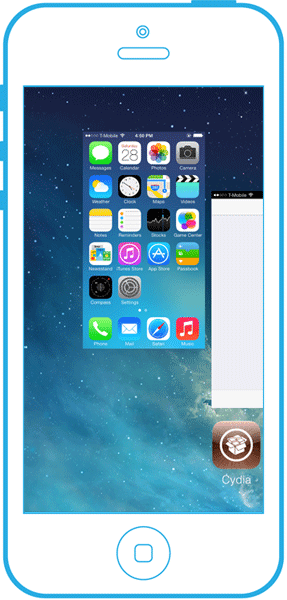
| Apple has really evolved the app switcher (actually they borrowed the idea from the jailbreak community). When you double press the home button you can scroll through your list of open applications, and with a simple swipe up that app will be closed freeing up memory.
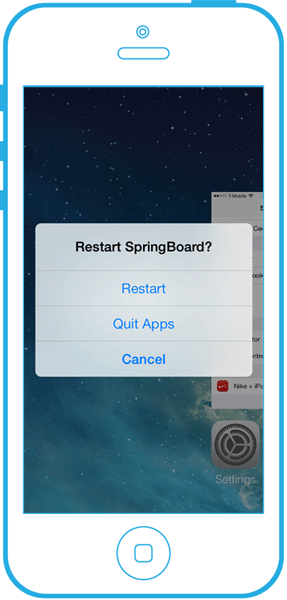
The jailbreak community has improved on this switcher. Install SwitchSpring and you’ll have the ability to slide up on the miniature version of your home screen and you’ll be given the choice to close all open applications (your music player will continue playing), or just restart the springboard. You can of course continue to close apps one at a time if you prefer. |
  |
| I know there are a lot of iPhone owners out there with broken home buttons.
Maybe you can’t get it repaired under warranty, or you just can’t afford to do it, or maybe you have a working home button but want to save on a lot of wear and tear. Menu Button Emulator is the program for you. It allows you to position a home button anywhere on your screen. This will help you with closing applications, and launching the app switcher. This developer has a similar program called Power Button Emulator. |
 |
| Ever wanted to record what you’re doing on your iPhone? Well you can with a free program called Record My Screen. |
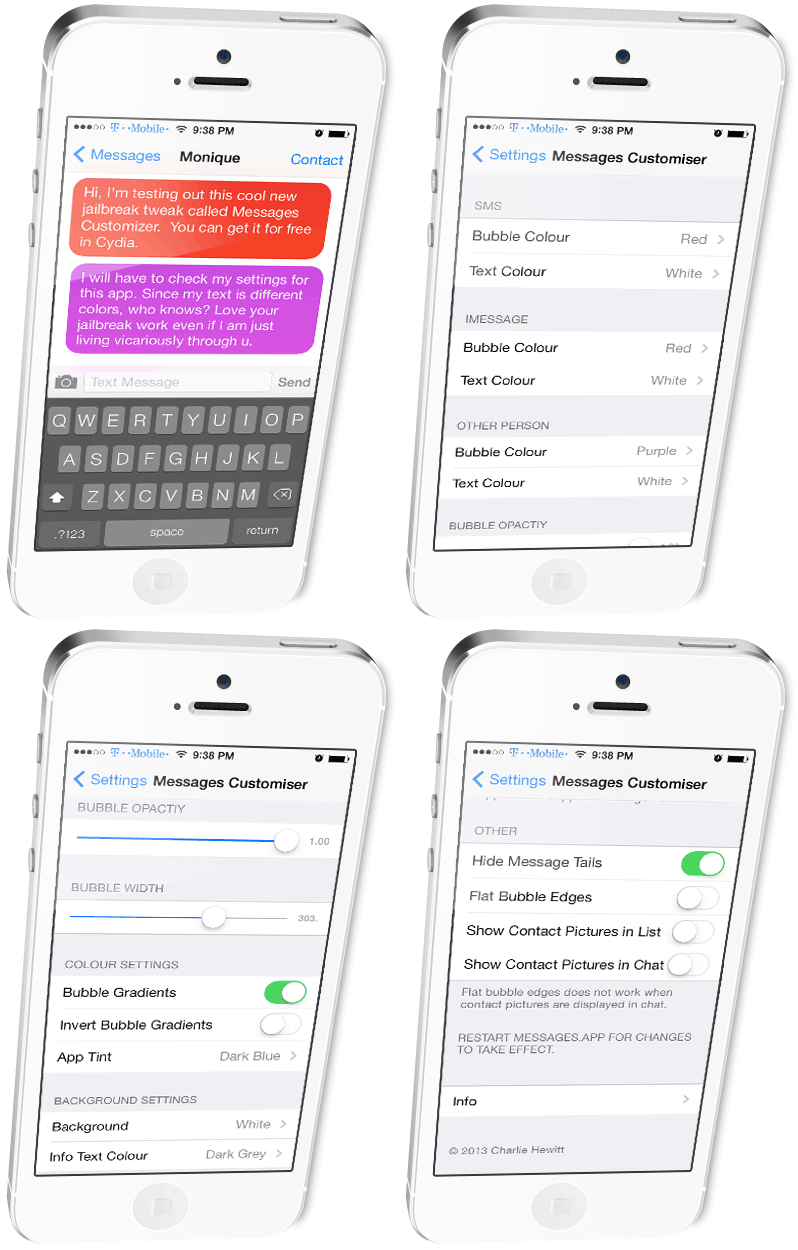 |
One of the things I don’t like about the Messages application is the chat bubbles are so narrow that it usually takes a lot of scrolling to have a conversation.
If you install the Messages Customiser program not only can you get wider chat bubbles, but you can even change the colors of them (and the text) however you’d like. You can also add custom backgrounds, hide the tails on those chat bubbles, and have the option to show or hide contact pictures in both list and conversation view. If you look closely you’ll see I’ve changed my carrier name from text to a nice T-Mobile graphic. I used the Zeppelin program to do this. There are literally hundreds of logos you can place here, or your own custom text message. Oh, I’ve also changed the keyboard from that very bright one, to a black one using the Bloard program. |
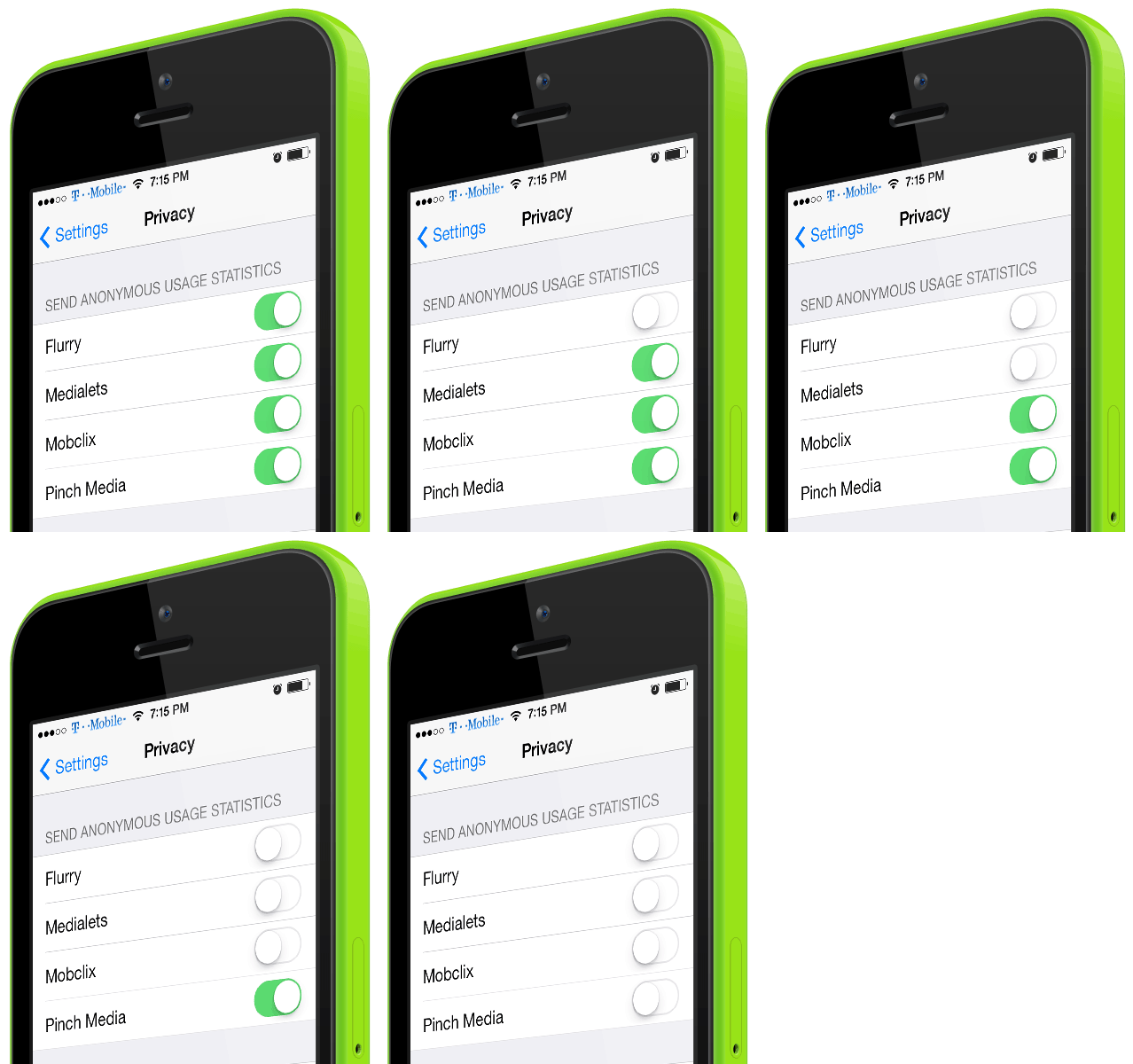
| Would you like to have the ability to opt out of data mining services which have their code embedded in some App Store applications?
The reasons for this data mining seem harmless enough – developers just want to track how users use their program… Uh huh. How many stories have been in the media the last couple years where some program uploaded your contacts and personal information to the Internet so that a developer could profit from it? Apple has even found programs that do this on their own App Store and had them removed for violating their rules! If you’d like the option to not be tracked, you can install a program called PrivaCy. This program was made by the creator of Cydia, and in conjunction with the data tracking service companies in question. |
 |
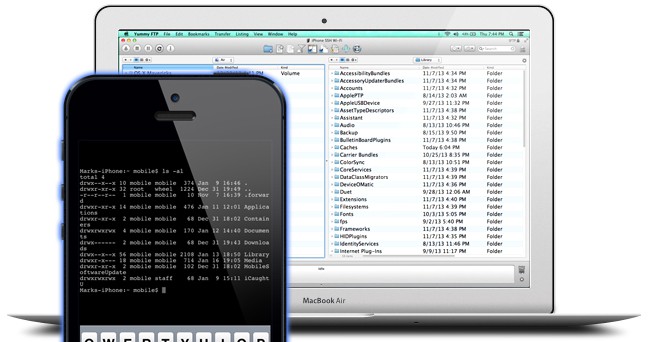
OpenSSH is a great program for interfacing with the file system on the iPhone. It allows for secure Wi-Fi (and USB) access between the iPhone and your Mac. This allows for transferring of files to and from, chmodding files and for installation and removal of programs.
I have a detailed tutorial for how to install this program on both the iPhone and your Mac. When you install SSH you can also change the well-known passwords for the root and mobile accounts which will make your iPhone more secure. You can even connect via the sync cable when Wi-Fi is unavailable.
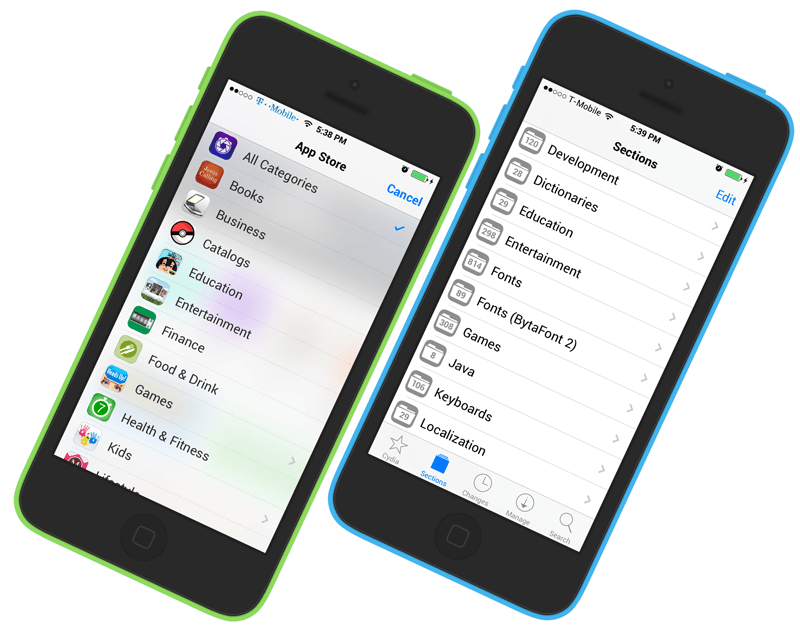
Here’re the interfaces for the App Store and Cydia. Pretty similar looking. They function the same as well. They also contain very similar apps in categories like education, entertainment, games, productivity, and tools. Most of the apps in Cydia are free.
Let’s jailbreak!
As a general rule when Apple releases new firmware for the iPhone it isn’t immediately jailbreakable upon release. It can take days or months until a jailbreak is released.
These are the topics I will cover next:
Jailbreaking issues
There’re some things you should know before you perform anything on this site. There’s some minor risk involved here. In a worst case scenario you simply restore your iPhone using iTunes, and your phone’ll be back to normal. Doing this will cause you to lose your jailbreak and / or unlock, and perhaps for some time…
- You potentially risk voiding your warranty (if you can’t restore your iPhone to stock firmware).
- Any modifications you perform on your iPhone, including jailbreaking and unlocking, could be reset (or the option to jailbreak or unlock blocked) if you should install a firmware update.
- Read the instructions in their entirety. If you can’t follow directions, the potential is there for damage (only in extreme cases) to occur to your iPhone requiring a replacement that will most likely be paid for by you.
- I’m not responsible for your results if they’re less than what you expected. You assume all risks. I recommend seeking help in iPhone hacking forums or in the various IRC channels. The tutorials I create record the exact procedure I used on my iPhone.
- If you haven’t activated your iPhone via one of the official cell phone providers (AT&T;, Sprint, T-Mobile or Verizon), and don’t pay them for your cellular phone service, then you may lack the ability to use visual voicemail and possibly FaceTime.
- Jailbreaks may have bugs in them causing undesirable side effects that’ve yet to be discovered. Sometimes these problems are solved when the programs are updated. I try to document widespread issues but can’t document everything. I do note any issues I had when performing the process.
iPhone models
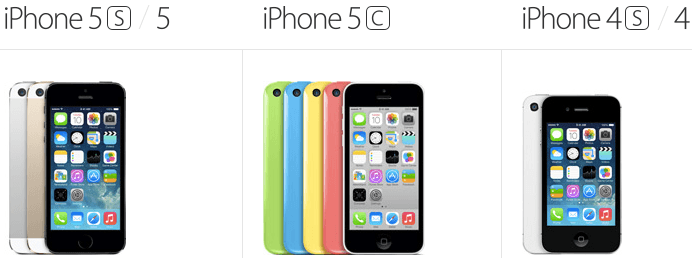
iOS 7 supports iPhone 4, 4S, 5, 5C and 5S.
Looking at the graphic below, the iPhone 5C and 5S are distinguished by the fact that they are taller than all previous models (except for the original iPhone 5) and it has six total rows of icons on the home screen, not five like all other iPhones before it. The iPhone 5S has a metallic and glass back that comes in three colors. The iPhone 5C has a polycarbonate back that comes in five neon-like colors. The iPhone 5 is most like the 5S coming in a black or a white and silver finish.
The last iPhones are the 4S and the 4 which are the same form factor, and are physically shorter than the 5, 5C and 5S. They come in a black or white finish only.
What firmware is jailbreakable? |
|
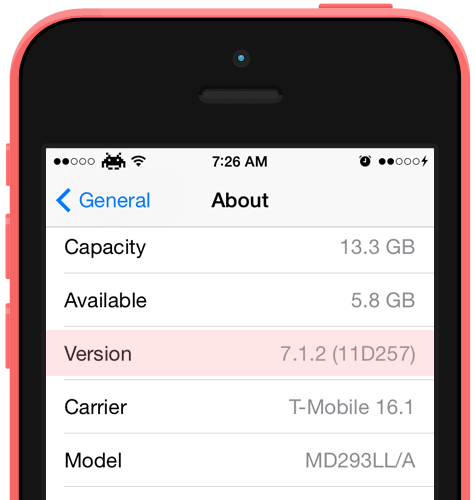
| To determine which firmware you have on your iPhone, launch the Settings application, press General, then press About.
Look at the entry for “Version” (also referred to as firmware, or iOS). It’ll have a number next to it, and another number in parentheses. We’re only concerned about the first two (or three) digit number. So when you hear that Apple’s releasing new firmware, that’s the number they’re referring to. The image to the right is from an iPhone 5, and I’ve highlighted the version number. Currently 7.0 through 7.1.2 firmware can be jailbroken. |
 |
Step 1 tutorials
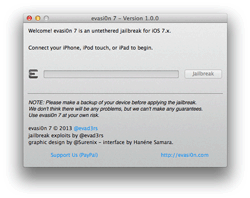
There are two Mac OS X programs for jailbreaking on iOS 7 firmware: Evasi0n and Pangu.
Evasi0n is made by the team called Evad3rs which is made up of members of various iPhone jailbreaking teams. Don’t pay for this program! I know there’re shady businesses out there that sell it! The team does accept donations. So if you’d like to thank the team for freeing your iPhone, please consider supporting them.
 |
Evasi0n: Works with firmware 7.0 – 7.0.6 on all iPhones.
|
| This tutorial is available to members only. To become a member click here. The jailbreak tutorial is here. |
Pangu is made by the Pangu Team and is made available for free. Don’t pay for this program!
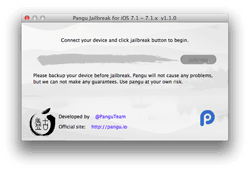 |
Pangu: Works with firmware 7.1 – 7.1.2 on all iPhones.
|
| This tutorial is available to members only. To become a member click here. The jailbreak tutorial is here. |
Are you running and older version of iOS firmware? No problem, I got you covered! Simply select the appropriate button below, and you’ll be taken to that section of tutorials. Keep in mind that only iOS 1 through iOS 5 tutorials are available for free. You must be a member to access iOS 6 or iOS 7 tutorials.
I’d like to thank these awesome artists who made various iPhone mockups (and even a MacBook Air mockup), and buttons that I used to jazz up my screen shots on this site: Alex Steven, Asif Aleem, Ben Lee, Koy Carraway, niccey, Paul Flavius Nechita, Pinto, Tempees, and The Pixeden Team. You rock!!!